If you are looking for a simple way to manage an Android TV, Google TV, Android TV box, or compatible Fire TV device from your smartphone, you have come to the right page. Instead of relying on a physical remote for every task, ATVTools brings many useful controls and management tools into one mobile app.
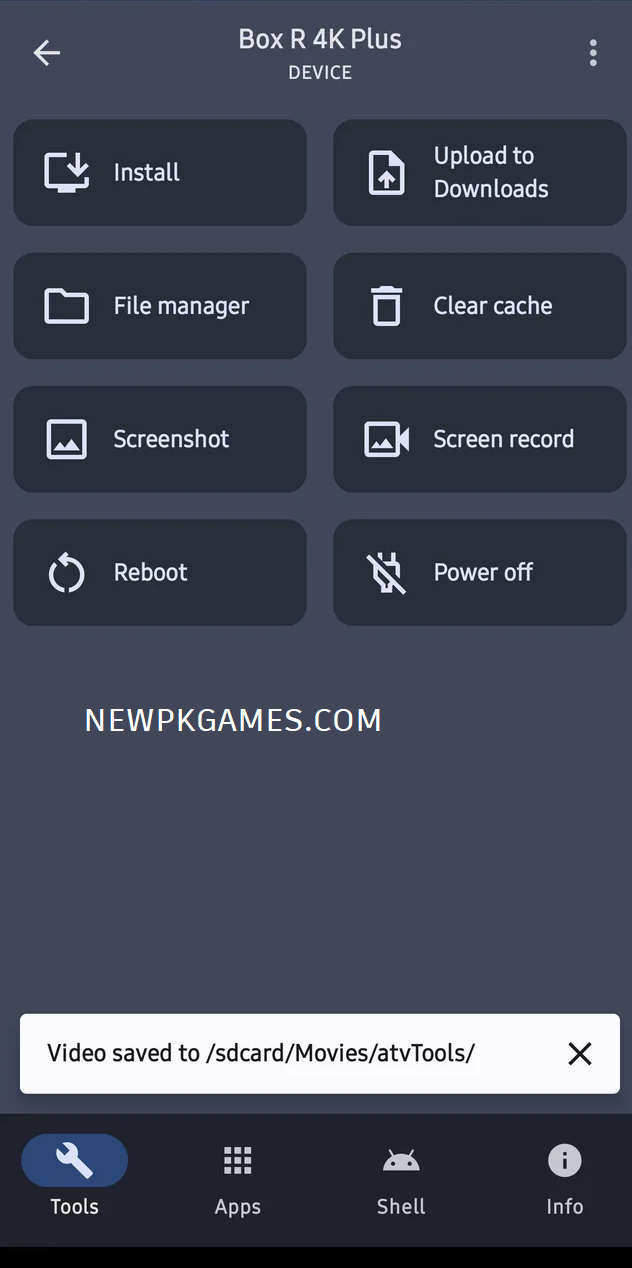
ATVTools is developed by tvDev and is designed around Android Debug Bridge (ADB), allowing a connected phone to communicate with a supported TV device. This app can install apps, manage TV applications, transfer files, control permissions, take screenshots, provide remote and mouse controls, run shell commands, and clear application caches.
What Is ATVTOOLS APK?
ATVTOOLS APK is a wonderful software application that enable the users to control several activities including TV application, transfer files and other process through your mobile phone. The application is not primarily a streaming service. It is a TV management and ADB utility. It performs several tasks mentioned below.
- Install APK files on a TV
- Send files from your phone
- Manage installed TV applications
- Open or force-stop apps
- Enable or disable supported apps
- Manage app permissions
- Browse TV storage
- Use a virtual remote
- Use mouse mode
- Type text from your phone
- Capture screenshots
- Mirror the TV screen
- Run ADB shell commands
- View system information
- Clear application caches
- Reboot or control the TV device
How Does atvTools Work?
atvTools uses ADB communication to connect your smartphone with the TV or streaming device.
For example, imagine that you have an APK on your phone but the application is not available through your TV’s normal app store. Instead of manually moving files around, atvTools can send the application to the TV and install it when the required connection and permissions are available.
Key Features of ATVTOOLS APK
Sideload APK Files
You can select an application package on your phone and transfer it to a compatible TV device. The newer version also supports package formats such as XAPK, APKM, and APKS according to the developer’s feature documentation.
This is useful when:
- An app is unavailable on the TV Play Store
- You have a legitimate APK backup
- You want to test an application
Manage TV Applications
atvTools can provide easy access to manage TV applications, including installing, deleting, transferring, and many more activities.
Built-In File Manager
This is an easy option to browse files stored on your TV, or you can send, rename, or transfer files through this feature.
Remote Control and Mouse Mode
Through this application, you can use your smartphone as a remote control. This app enables you to use remote control in a smart way.
Screen Mirroring
Screen mirroring lets you view the TV display on your phone and interact with it.
Screenshots and Recording
The app has a wide variety of new features that can assist the user in performing various tasks, including taking screenshots or recording anything you want.
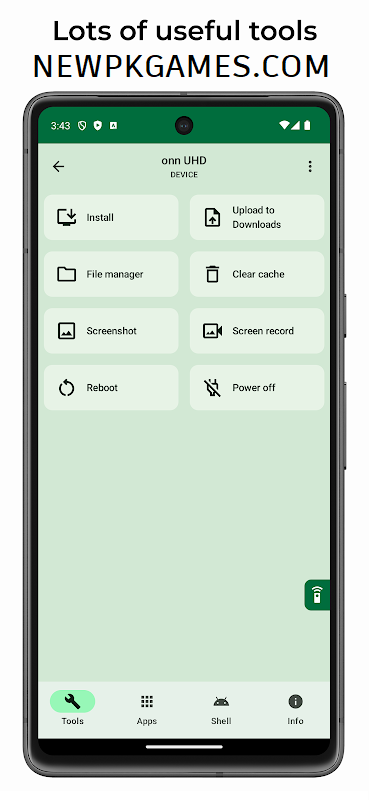
File Transfer
If you need to move a file from your phone to your TV, then this tool helps you to transfer any kind of file from your mobile to your TV.
Device Information
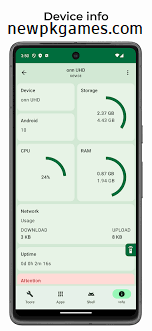
atvTools can display information such as CPU, RAM, storage, network activity, and running applications. This makes it useful not only as a remote but also as a basic troubleshooting toolbox.
What Devices Can Use ATVTOOLS?
atvTools is designed for compatible Android TV-based devices. The developer also advertises support for compatible Fire TV devices.
Compatibility can vary according to:
- TV manufacturer
- Android/Google TV version
- USB debugging availability
- Wireless debugging support
- ADB restrictions
- Device permissions
- Network configuration
How to Connect ATVTOOLS to Android TV
Step 1: Enable Developer Options
On the TV, open the device’s settings and locate About or the device-information section.
Find the build information and repeatedly select it until developer options become available.
Step 2: Enable Debugging
Open Developer Options and enable the appropriate USB or network/wireless debugging feature.
The developer’s older Android TV setup guide specifically explains enabling USB debugging and then connecting through the same Wi-Fi network.
Step 3: Connect Your Phone
Install atvTools on your smartphone.
If you are using wireless ADB, make sure the phone and TV are connected to the same local network.
The device may appear automatically, or you may need to enter its IP address and ADB port.
Step 4: Approve the Connection
When the TV displays an authorization request, approve it if you trust the phone.
Some users can select an option similar to Always allow for that device.
Step 5: Test a Simple Feature
Before changing system settings, test something harmless, such as the remote control or file transfer.
If the connection works, you can explore the other features gradually.
Benefits of ATVTOOLS APK
Convenient TV Management
You can perform many tasks from your smartphone instead of navigating complicated TV menus.
Useful for Sideloading
Installing legitimate APK files becomes more convenient when the TV does not provide a direct installation option.
Helpful for Advanced Users
ADB shell access, application management, device statistics, and file tools give experienced users considerably more control.
One Toolbox Instead of Many Apps
Rather than installing separate utilities for remote control, file transfer, and troubleshooting, atvTools brings many functions together.
Better Text Input
Typing long search terms with a phone keyboard can be easier than using a TV remote.
Pros and Cons
Pros
- Many useful TV-management tools
- Smartphone remote functionality
- APK and file transfer capabilities
- Application management
- ADB shell support
- File manager
- Screen tools
- Device information
- Regular feature updates
Cons
- Requires compatible debugging access
- Some functions depend on the TV model
- Advanced ADB tools can be risky for beginners
- Wireless connection may fail because of network settings
- APK/XAPK installation can be confusing for inexperienced users
- Third-party APK downloads require additional security caution
Who Should Use ATVTOOLS?
atvTools is especially useful for:
- Android TV owners
- Google TV users
- Android TV box owners
- People who frequently sideload legitimate apps
- TV technicians
- Android enthusiasts
- Developers testing TV applications
- Users who want a phone-based remote
- People managing multiple TV devices
Final Verdict
Its combination of remote control, sideloading, file management, app administration, screen tools, device information, and ADB functionality makes it particularly attractive to Android TV enthusiasts and advanced users.
Frequently Asked Questions
What is ATVTOOLS APK used for?
It is used for remote control, file transfer, application management, sideloading, screenshots, device information, and ADB-related tools.
Can I use atvTools to install APK files on Android TV?
Yes. Sideloading applications is one of its main purposes.
Is this tool free for Download?
Yes, you can download this tool free.